Pre-Summer Special Limited Time 70% Discount Offer - Ends in 0d 00h 00m 00s - Coupon code: validbest

Pass the UiPath Certified Professional - General Track UiPath-TAEPv1 Questions and answers with ValidTests

Exam UiPath-TAEPv1 All Questions
Exam UiPath-TAEPv1 Premium Access

View all detail and faqs for the UiPath-TAEPv1 exam

Viewing page 3 out of 4 pages
Viewing questions 21-30 out of questions
Questions # 21:

What type of license is used for an Unattended Robot in development and testing mode, enabling it to execute both test cases and RPA processes?

Options:

A.

Citizen Developer

B.

RPA Developer

C.

Testing

D.

NonProduction

Expert Solution
Questions # 22:

What is the difference between RPA testing and application testing?

Options:

A.

RPA testing and application testing are the same thing, the term used simply depends on the specific software involved.

B.

RPA testing involves checking the quality of robotic processes, whereas application testing checks the functionality of software applications.

C.

RPA testing checks the functionality of a software application, but application testing evaluates the performance of robots.

D.

RPA testing evaluates human interactions with software, while application testing checks robotic processes.

Expert Solution
Questions # 23:

What should be ensured before uploading items to test data queues?

Options:

A.

All the items in the queue are set as consumed.

B.

The creation of a testdata queue with a correspondingJSON schema.

C.

The administrator permissions for Orchestrator is obtained.

D.

The test data queue was uploaded to the server.

Expert Solution
Questions # 24:

How can the results of a test case be overridden in Test Manager?

Options:

A.

Navigate to Test Results, open a test result, open a test case log and then select Tasks > Override result.

B.

Select the test case from the Results tab and click on Override result.

C.

Navigate to Test Results, click on Test Manager settings and then select Override test results feature.

D.

Go to Test Results, select a test case and then use the Override tool in the toolbar.

Expert Solution
Questions # 25:

Considering the provided configuration for Workflow Analyzer Settings, which of the testing rules applied will be classified as a "Warning"?
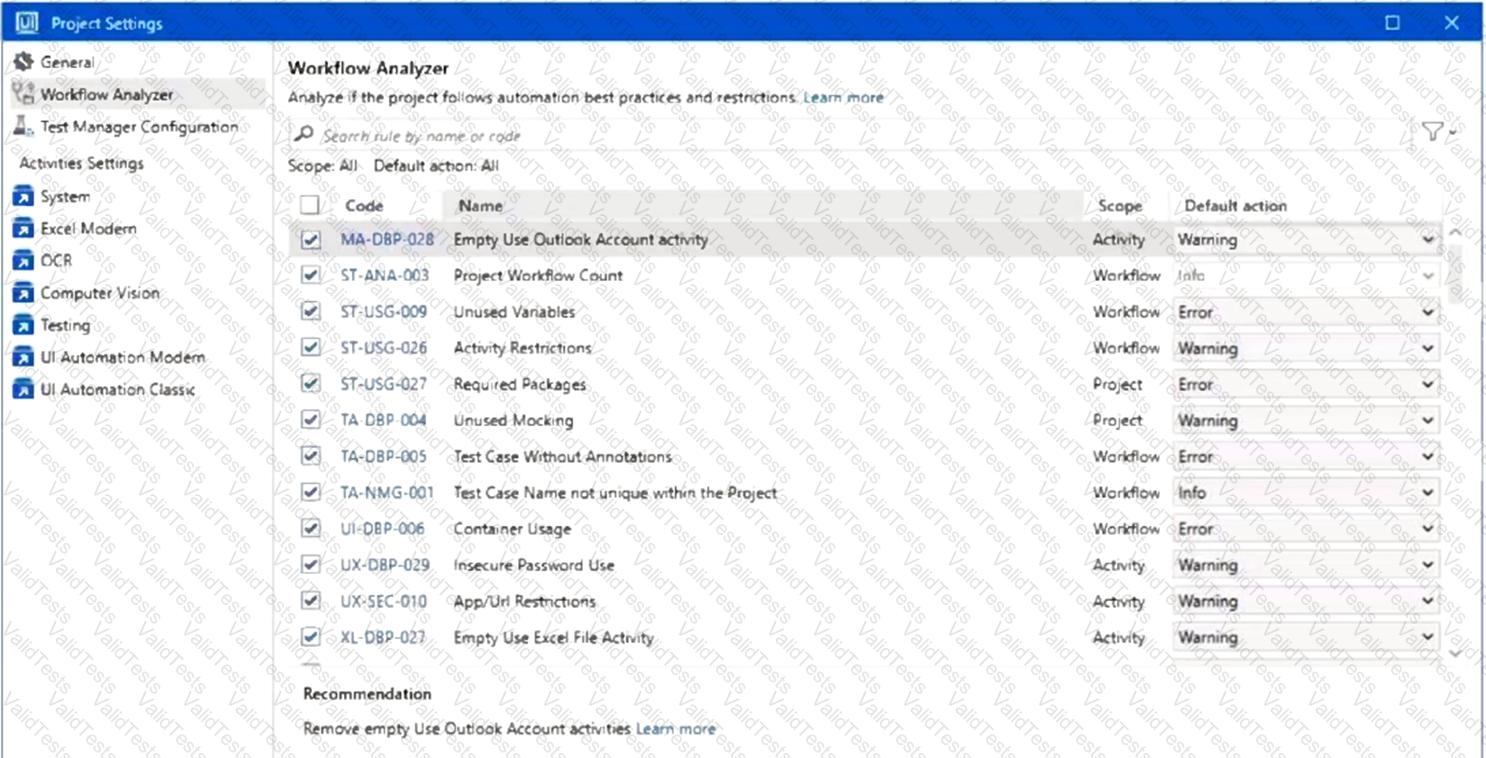
Question # 25

Options:

A.

Test Case Name not unique within the Project

B.

Activity Restrictions

C.

Unused Mocking

D.

Test Case Without Annotations

Expert Solution
Questions # 26:

Considering the following snippet, where is LoanRate defined?

Question # 26

Options:

A.

In the Object Repository, under the application LoanResults.

B.

In the LoanResults class that contains a setter for LoanRate.

C.

In the UiAutomation class that contains a setter for LoanRate.

D.

In the Object Repository, under the screen LoanResults.

Expert Solution
Questions # 27:

What does the UiPath CLI allow to do?

Options:

A.

Run on both Windows and Linux devices without any restrictions.

B.

Execute certainpre-defined tasks for RPA package management and testing.

C.

Run only Windows - Legacy projects.

D.

Build Studio projects that are not compatible with Orchestrator.

Expert Solution
Questions # 28:

Which is an activity in UiPath Studio?

Options:

A.

Verify Data Table

B.

Verify Image

C.

Verify Control Attribute

D.

Verity UiElement

Expert Solution
Questions # 29:

What does the Total Coverage KPI from the UiPath Test Manager Dashboard measure?

Options:

A.

The percentage of manual test cases that are also automated.

B.

The percentage of requirements that have at least one test case out of the total number of requirements.

C.

The percentage of projects in an organization that have at least one test case out of the total number of projects in that organization.

D.

The percentage of projects in a tenant that have at least one test case out of the total number of projects in that tenant.

Expert Solution
Questions # 30:

Where can robot authentication settings be seen and configured?

Options:

A.

Tenant > Preferences, on the Robot security tab.

B.

Tenant > Settings, on the Robot connection tab.

C.

Tenant > Preferences, on the Robot connection tab.

D.

Tenant > Settings, on the Robot security tab.

Expert Solution
Viewing page 3 out of 4 pages
Viewing questions 21-30 out of questions